PHAWAZZZY'S BLOG: how to
Showing posts with label how to. Show all posts

Tuesday, October 24

how to Protect Yourself Against KRACK( a new way of hacking)

2:54 AM
 how  to Protect Yourself Against KRACK( a new way of hacking)
you can be hacked by connecting to a wifi network without you knowing and your information such as credit card data, phone number, message are at great risk...
this post will guide you on how to prevent your devices against this new hacking method.


Last week, the internet went into crisis  when a group of researchers unveiled a  new hacking system that threatens Wi-Fi access points around the world.
What is KRACK? How much damage can it do you? To what extent is your Wi-Fi in danger? And most important, how can you protect yourself from these types of attack? this post will enlighten you. so make sure you read to the end

What is the KRACK vulnerability?

 KRACK ,  it was given the name KRACK by the cybersecurity researchers who discovered it, the vulnerability opens up a gap in WPA2. This encryption system is the standard security option for most Wi-Fi networks around the world.
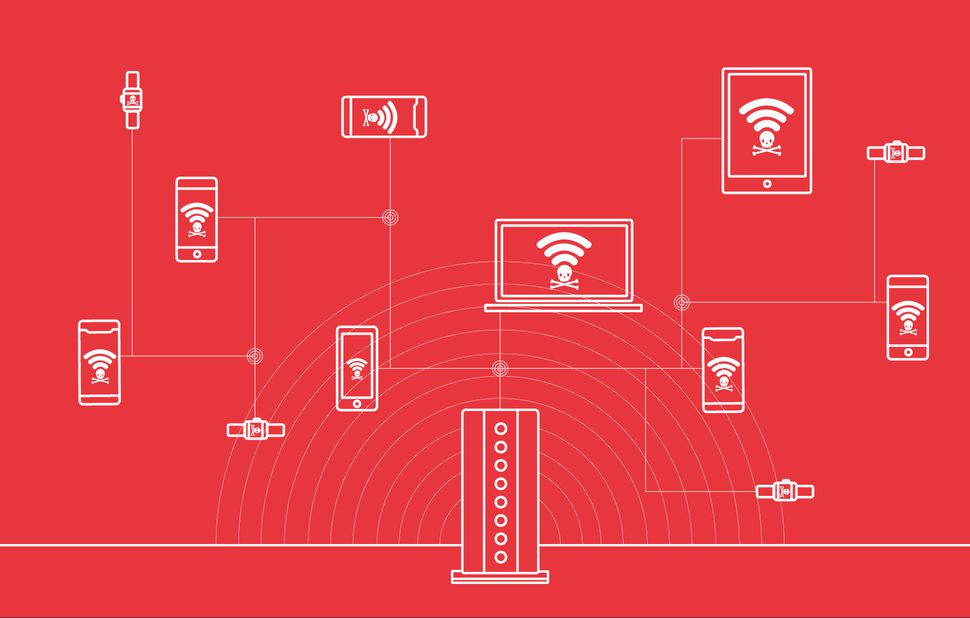
This discovery has triggered alarms due to the proliferation of WPA2 around the world and our increased dependency on Wi-Fi. WPA2 replaced the older security protocols for similar reasons.
“The WEP security protocol was cracked in 2001 and was immediately considered unsafe to use and unable to keep networks safe from malicious eyes, “said Mark James, a security specialist. “And here we are, 16 years later. And it looks like WPA2 will continue down the same path. ”

HOW  KRACK AFFECTS YOU?

An attacker using KRACK can intercept some of the traffic that travels between your Wi-Fi access point and the devices connected to it, meaning that, the attacker can illegally gets critical information such as your mail, credit card number, passwords, and phone numbers.
However, if the traffic is encrypted using the HTTPS protocol, the attacker can’t access that information. The attacker also can’t steal your Wi-Fi password, although the password isn’t needed to access non-encrypted data.
With certain tools, the attacker can perform a packet injection, a process that allows them to install malware on all the devices connected to the Wi-Fi network. This is a more complicated effort, however, so there is less chance that it will happen to you.
KRACK has other limitations as well. The attacker must be in the range of the Wi-Fi network, or else be able to take control of a computer within range of the Wi-Fi network, which requires a lot of work and efforts  on the part of the hacker. It is also possible that companies will release patches that will prevent the possibility of a remote-control attack.
Some have proposed the possibility of using the exploit as a worm–a type of program that tries infects a computer and quickly spreads to the devices to which it is connected. so far, this possibility is no more than conjecture.


How to protect yourself against KRACK?

1.firstly: CHANGING THE PASSWORD DOES NOT HELP YOU
Remember, the attacker does not need to know your Wi-Fi password to intercept your traffic. The attacker will be able to steal data such as your credit card number and the content of your messages in chats without the password … but they won’t be able to access your actual Wi-Fi without the password.

2. UPDATE, 
Manufacturers are releasing updates that patch the KRACK (pun intended). Update all your routers and devices that connect to Wi-Fi like computers, mobiles, and tablets. You can also enable the auto-update option, so that you don’t have to keep worrying about whether or not the anti-KRACK update has been installed or not.
Prioritize updating your router. You can tell if it has been updated by accessing your admin panel. If you have further questions, contact your company to ensure they have already prepared the countermeasure. In case they don’t answer or you do not like the answer, you have two options: get a new router or buy a Wi-Fi access point from a responsible company that has already updated their software. At this link you’ll find a constantly updated list so that you know which companies have updated the firmware.
3.  USing ETHERNET is a plan b
If your router is not on the list of updated products and you can’t buy a secure access point, consider disconnecting the wireless connection and betting on Ethernet for the short term. This means that you would be stuck using devices that are literally connected to the router via a cable, so it might necessitate buying additional Ethernet cables.

4. THE TIME OF THE DATA
Of course, you can’t connect your phones or tablets using an Ethernet cable. So if you really want to feel safe, consider disconnecting the Wi-Fi from your mobile or tablet and using cellular data. It is not an ideal solution, and I only recommend it if you suspect that someone is accessing your data. Android users should be especially careful in this regard, as Android 6.0 devices are more vulnerable than other devices.
5. INSTALL THE HTTPS EVERYWHERE EXTENSION
Remember that attackers can’t access HTTPS encrypted traffic. That’s why it’s important to use an extension such as HTTPS Everywhere. This way, when browsing with Chrome, Firefox, or Opera, you will automatically visit the HTTPS version of a webpage. The only exception is when the webpage in question does not use HTTPS. You can check to see if a webpage uses HTTPS by looking at the URL: If the start of the URL is http instead of https, it is advisable that you avoid visiting the page because all the information you share will be vulnerable.
6. AVOID PUBLIC WI-FI HOTSPOTS
The attacker can only access your Wi-Fi if it is within range, so let’s put ourselves in the mind of a criminal for a moment. Which is easier: to enter the range of a private Wi-Fi network or enter the range of a public Wi-Fi network (like, say, a coffee shop)? Be careful with the public Wi-Fi: yes, you save data when you use it, but until there is a more definitive solution the KRACK problem, trying to save your data might put you in danger.
7.INTERNET OF THINGS devices
IoT devices such as Amazon Echo and Google Home are the most at risk from KRACK. Disconnect devices from your network that have not yet been updated by their companies.

However, be selective. Imagine that an attacker manages to access the traffic that manages your smart light bulb (yes, there these things actually exist) and your router. So what? This information might not put you at risk. Instead, focus on devices like Google Home that are distributors of very private and valuable information about your life and habits.
8. VPN: A GOOD SOLUTION, WITH CAVEATS
Your other option is to use VPN. On the plus side, with VPN you protect yourself KRACK. But on the negative side, you might expose yourself to VPN companies that sell all the information they get from your browsing to third parties. Before using VPN as a solution, make sure the provider is legit.
i hope this is helpful ? if yes, share with your friends.
Read More

HOW TO TRANSFER ANYTHING(PHOTOS, VIDEOS, FILES) FROM PHONE TO COMPUTER AND COMPUTER TO PHONE WITH XENDER(WITHOUT USB CORD)

2:22 AM
HOW TO TRANSFER ANYTHING(PHOTOS, VIDEOS, FILES) FROM PHONE TO COMPUTER AND COMPUTER TO PHONE WITH XENDER(WITHOUT USB CORD)

The ICT world is no longer using wired connection, almost everything is  now dealing  with wireless connection.
This post will teach you how to transfer files from your phone to your system with xender(very easy steps)


All you need

  1.    An android phone
  2.   A computer/laptop/pc with a wireless connection(wifi connection


Step 1
Open your xender app on your android phone and click the circle at the top left corner


Step 2
You will see “connect to pc” click it


Step 3
You might see something like this if you do clilck the circle with the hotspot sign
if this does not show you will see connect hotspot. click it


Step 4
You will see something like this below
        “1. Connect your pc to the wi-Fi network  “name of your hotspot” mine is xender_AP688c

Step 5
This is where you system comes in
Connect your system to the wifi network
Then go to your browser on your system (chrome, EDGE, moxilla, opera mini)

Step 6
Then type “http://192.168.43.1:33455. click enter

Step 7
It will bring something like to your phone asking you to decline or accept.  Click accept…
Then you have successfully connected your phone to your system. You can now transfer anything from your phone to your system and vice versa


From your to system you download while from system to phone you click upload and select the things you want to transfer then click ok/open/enter. It will transfer ..

Hope this was helpful..you can drop your comment if you have any other question
Like us on facebook ,and twitter (@phawazzzysblog) for more updates on “how to”..thanks

You can reach me on whatsapp (+234) 8162816543
Read More

Tuesday, September 26

How To Block Unwanted Calls And SMS On Your Android

4:17 PM
How To Block Unwanted Calls And SMS On Your Android

How To Block Unwanted Calls And SMS On Your Android

How To Block Unwanted Calls And SMS On Your Android
Here I will tell you the app’s which will help you to Block Unwanted Calls And SMS On Android PhoneJust download and install this app ‘s and this app’s will block the unwanted calls for you.

#1 Blacklist App

Blacklist-Pro-785x581
This app is very convenient to the android user and provides lots of characteristics or options to the user which is explained in detail in the below. Just go through these features and enable them according to your requirement.

Features:

  • Blacklist: Here you can block numbers by three ways that are Block Numbers not in my contacts, Block Private numbers, Block a Specific number.
  • Text Filter:- This option allows you to block any text messages from any number that you can either select from your contacts or you can manually enter in this section.
  • Backup/Restore Settings:- This feature of the app allows you to restore and backup all your previous settings in one click and you will get reverted to your previous settings without facing any problem.

#2 Truecaller – Caller ID & Block

true caller
Basically, as we all know Truecaller is an app which lets you search for an unknown number but, Guess what? This app comes up with an extraordinary feature which can block unwanted or Spam calls. This is one of the most trusted apps you can have in your smartphone in order to block SMS or calls.

Features:

  • See who is calling if you don’t have their number in your phonebook
  • Block unwanted calls from spam callers and telemarketers
  • Search for any number in the world to see who it belongs to
  • You can now copy a number anywhere (e.g. website or apps) and Truecaller will notify you who it belongs to
  • Get in touch with people via name search (Premium feature)

#3 Call Blocker

call blocker
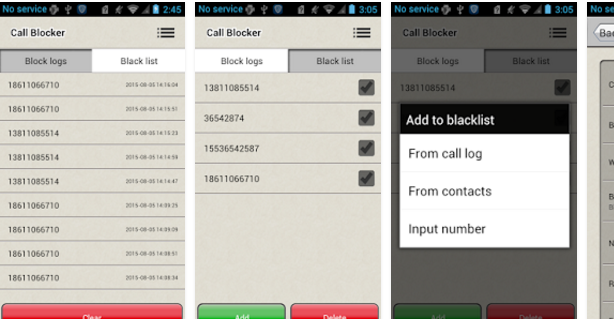
If You are fully annoyed by a company or unknown calls then this app will do wonder for you, it automatically blocks unwanted calls. You can also put number’s in blacklist manually in order to block anyone’s calls. This app is simple and clean and the good part is it doesn’t consume much memory.

Features:

  • Blacklist, add numbers to blacklist to block
  • Whitelist, add numbers that don’t need to block to whitelist
  • Record logs of rejected numbers

#4 Block call and block SMS

Block Call and Block SMS
This app simply blocks and also let you manage your blacklist, This app serves two option one is for blocking calls and the other one is for SMS so if you want an app that blocks both call’s and SMS then this one is best for you. You can either block any number from your contacts list, calls, or add unwanted number manually.

Features:

  • Numbers blacklist (blocking incoming calls, incoming message)
  • Blocking anonymous (private) numbers
  • Blocking all incoming calls incoming message from blacklist
  • Blocking all messages that have content in content list
  • Block history
  • Enable/Disable Notification of blocked calls, messages

#5 Calls Blacklist – Call Blocker

Calls Blacklist - Call Blocker


It is the best one and the most effective one, This is a multi-purpose app which acts as a call blocker as well as an SMS blocker. You can simply add any number to the blacklist and can block their all SMS or calls. This is very easy to use lightweight and provides wide range of functions

Features:

  • Blacklist (list of calls or SMS, you want to block).
  • Schedule.
  • Whitelist (never block list).
  • Journal of blocked calls and messages.
  • One clicks ON/OFF call blocker or SMS blocker.
  • Blocking of unknown and private numbers.
  • Blocking by prefix (“Begins with” option).
  • Blacklist saving and loading.
So preceding is all about How To Block Unwanted Calls And SMS On Android Phone. By this arrangement, you can easily block any calls and text messages from any of selected number and can ensure your privacy by enduringly disallowing persons to disturb you. Just implement this app’s in your Android Smartphone. Hope you like the post. Don’t forget to share this cool post with your friends and also leave a comment in the comment box if you have any related queries.
Read More

Saturday, September 9

HOW TO CREATE STRONG PASSWORDS TO SECURE YOUR ACCOUNT FROM HACKERS

12:51 AM
HOW TO CREATE STRONG PASSWORDS TO SECURE YOUR ACCOUNT FROM HACKERS


As you know that passwords are the only form of security available now a days, It’s really important for one to create a strong passwords,
Keeping a weak passwords can make you vulnerable to attacks such as Brute force, Dictionary attacks, Rainbow Tables etc.
So in this article I will tell you to create a strong password so you can secure your account from getting hacked.

What makes a strong password?
A password can be considered strong if it contains following things:

It needs to contain special characters such as @#$%^&
it needs to contain numbers
It must be at least 8 characters long.  e.g( Ab10lade*$)
It must not have any common words such as 123, password, your birth date, your login name and any words that can be found in the dictionary,(This will prevent you from getting hacked by a Dictionary Attack)
a variation of capitalization and small letters Alternatively there is a website named www.strongpasswordgenerator.com which automatically generates a strong password for you, The website allows you to choose a password length and also gives you hints through which you can easily memorize the password


Hope this was helpful..
you can follow us on facebook and twitter @phawazzzysblog for more
Read More